
The problem
At the first start of an application, user can be a bit confused in front of all of these features, buttons and data. In response to that, we often have a short presentation of each element on the screen. This also presents a typical workflow with the application.
First, You need to create a project or document. Then, define the name, the type… Then add content using this or that.
This feature is often called UI walk through, or UI tour.
UI Walker
I made this library to provide an easy way to do a walkthrough in any QML application.
Important Links
- Code source of UiWalker.
- QML Item ready for the Walker
- QML Window including UiWalker
Include Ui Walker to your project
target_link_libraries(MyProject
PRIVATE
    Qt6::Core
    Qt6::Quick
    WalkerComponent # add UIWalker
)
Using cmake it is really easy. You can define the library to be a git submodule and then
Prepare you qml code
The whole concept is based on attached property. To highlight a item, you must define two properties:
- WalkerItem.description: the text that will be displayed when this element is highlighted
- WalkerItem.weight: Numeric value to define the order (ascending order).
ToolButton {
    WalkerItem.description: qsTr("Description of the element")
    WalkerItem.weight: 104
}
Add the UI walker
Currently, you have to add one item. It should have the size of the whole window. This item provides several properties in order to help you manage the output.
Properties:
| name | description | type |
|---|---|---|
| count | Total number of highlighted Item | int |
| current | Index of the current highlighted item | int |
| currentDesc | Description of the current item | QString |
| dimColor | Color which hides the rest of the application | QColor |
| dimOpacity | Opacity of the dim | qreal |
| availableRect | Biggest Rectangle (where text can be displayed). | QRectF |
| borderRect | Rect of the current highlighted item | QRectF |
| interval | Define the time interval on each highlighted item | int |
| active | True when the Walker is displayed | bool |
Here is an example:
 WalkerItem {
    id: walker
    anchors.fill: parent
    visible: false
    dimOpacity: 0.8

    onActiveChanged: {
        //walker.active
    }

    Label {
        id: label


        text: walker.currentDesc // text from walker
        x: walker.availableRect.x // calculated position
        y: walker.availableRect.y // calculated position
        width: walker.availableRect.width // calculated position
        height: walker.availableRect.height // calculated position
    }

    Rectangle {
        x: walker.borderRect.x-2
        y: walker.borderRect.y-2
        width: walker.borderRect.width+4
        height: walker.borderRect.height+4
        border.color: "red"
        color: "transparent"
        radius: 10
        border.width: 4
    }

    ToolButton {
        icon.source: walker.current + 1 === walker.count ? "qrc:/finish.svg" : "qrc:/next.svg"

        onClicked:{
            if(walker.current +1 === walker.count)
                walker.skip()
            else
                walker.next()
        }
    }
}
React on Highlight event
Highlighted items get notified through two signals: enter and exit.
Defining signal handlers allow you to react. So you can show the full workflow to add new data.
TextField {
    id: nameField
    // …
    WalkerItem.description: qsTr("Set macro name.")
    WalkerItem.weight: 30
    WalkerItem.onEnter: {
        nameField.text = qsTr("Skill Roll")
    }
}
Start it !
In order, to start the UI tour, you simply have to call the function: start() of the Item.
Of course, it is up to you to trigger it automatically when it’s the first start of the application or if the user asked for the tour.
Here you have an example:
Component.onCompleted: {
    if(DiceMainController.uiTour === DiceMainController.UnDone) {
        walker.start()
    }
}
I have a CPP controller with property UiTour which gives the current status of the tour.
Here, I call directly the walker function. But it may be safer to call a function to reset the state of the window.
Navigation
The walker provides two important function next() and previous() to navigate.
Basically on the walker, you can add buttons in the available Rect to manage the navigation.
Other option, you can define an interval in milliseconds which will call the next() function.
You have to make sure the item is visible while the walker highlight it. It could be tricky to make the path from the end to be beginning. In some case, it is easier to never use the previous function.
Finish it!
Calling the function skip(), close the walker. Then the application is displayed normally.
It can be called at any time.
Cheat code
| Function | description |
|---|---|
| start() | The walker becomes visible, and the first item is highligthed |
| next() | Highlight the next item, trigger appropriated signals |
| previous() | Highlight the previous item, trigger appropriated signals |
| skip() | Hide the walker |
How it works ?
The attached properties
In order to harvest all data from the QML, I had to define attached property.
This is the definition of QObject which will be attached, each time a QML item has defined any Walker property.
class WalkerAttachedType : public QObject
{
    Q_OBJECT
    Q_PROPERTY(QString description READ description WRITE setDescription NOTIFY descriptionChanged FINAL)
    Q_PROPERTY(int weight READ weight WRITE setWeight NOTIFY weightChanged FINAL)
    QML_ANONYMOUS
public:
    explicit WalkerAttachedType(QObject* parent= nullptr);
    //…
signals:
    void enter();
    void exit();
    //…
};
In the WalkerItem.h, I have to create this static function.
    // …
    Q_OBJECT
    QML_ATTACHED(WalkerAttachedType)
    // …
    static WalkerAttachedType* qmlAttachedProperties(QObject* object)
    {
        QQuickItem* item= qobject_cast<QQuickItem*>(object);
        if(!item)
            qDebug() << "Walker must be attached to an Item";
        s_items.append(item);
        return new WalkerAttachedType(object);
    }
QSceneGraph and Nodes
WalkreItem defines a QML item, written in cpp to be light-weighted.
I used QSGNode to draw it on screen. The item code manages the logic of the walkthrough and the update of the geometry.
To make it short, the SceneGraph is the rendering engine of QML. QSGNode defines an API to communicate with it directly.
First, I create the QML item in cpp, using QSGNode to be rendered.
//walkeritem.h
class WalkerItem : public QQuickItem
{
    Q_OBJECT
    QML_ATTACHED(WalkerAttachedType)
    QML_ELEMENT
    Q_PROPERTY(QString currentDesc READ currentDesc NOTIFY currentChanged FINAL)
    Q_PROPERTY(QColor dimColor READ dimColor WRITE setDimColor NOTIFY dimColorChanged FINAL)
    Q_PROPERTY(qreal dimOpacity READ dimOpacity WRITE setDimOpacity NOTIFY dimOpacityChanged FINAL)
    Q_PROPERTY(QRectF availableRect READ availableRect NOTIFY availableRectChanged FINAL)
    Q_PROPERTY(QRectF borderRect READ borderRect NOTIFY borderRectChanged FINAL)
    Q_PROPERTY(int interval READ interval WRITE setInterval NOTIFY intervalChanged FINAL)
    Q_PROPERTY(bool active READ active NOTIFY activeChanged FINAL)
public:
    WalkerItem();

    // accessors, signals, slots…

protected:
    QSGNode* updatePaintNode(QSGNode*, UpdatePaintNodeData*) override;// update scenegraph
};


//walkeritem.cpp
WalkerItem::WalkerItem()// in the constructor
{
    setFlag(QQuickItem::ItemHasContents);// must be called
    connect(child, &QQuickItem::widthChanged, this, &WalkerItem::updateComputation);
    connect(child, &QQuickItem::heightChanged, this, &WalkerItem::updateComputation);
}

void WalkerItem::updateComputation()
{
    // compute geometry and list any changes that must be sync with the SceneGraph.
    m_change|= WalkerItem::ChangeType::GeometryChanged;
    update();// call to paint the item
}

QSGNode* WalkerItem::updatePaintNode(QSGNode* node, UpdatePaintNodeData*)
{
    auto wNode= static_cast<WalkerNode*>(node);
    if(!wNode)
    {
        wNode= new WalkerNode();//first time
    }

    if(m_change & WalkerItem::ChangeType::ColorChanged)
        wNode->updateColor(m_dimColor);
    if(m_change & WalkerItem::ChangeType::GeometryChanged)
        wNode->update(boundingRect(), m_targetRect);
    if(m_change & WalkerItem::ChangeType::OpacityChanged)
        wNode->updateOpacity(m_dimOpacity);

    m_change= WalkerItem::ChangeType::NoChanges;
    return wNode;
}
We have here an item with a geometry like any other item (x,y,width, height), we also have a dimColor and dimOpacity.
Any time one of these properties change. I have to sync with the QSceneGraph to update either the geometry, the dimColor or the dimOpacity.
Each time, one property changes, I stored the type of change in the m_change member and I call update().
The render engine will call my item with the QSGNode reprenting it on the SceneGraph side. Then I can call function on my SGNode. When sync is finished I reset the change to NoChange and return the node.
The updatePaintNode can be called with a null node. In this case, you have to create it. It will be the case, the first time. And it could happen later in some cases for optimalization reason.
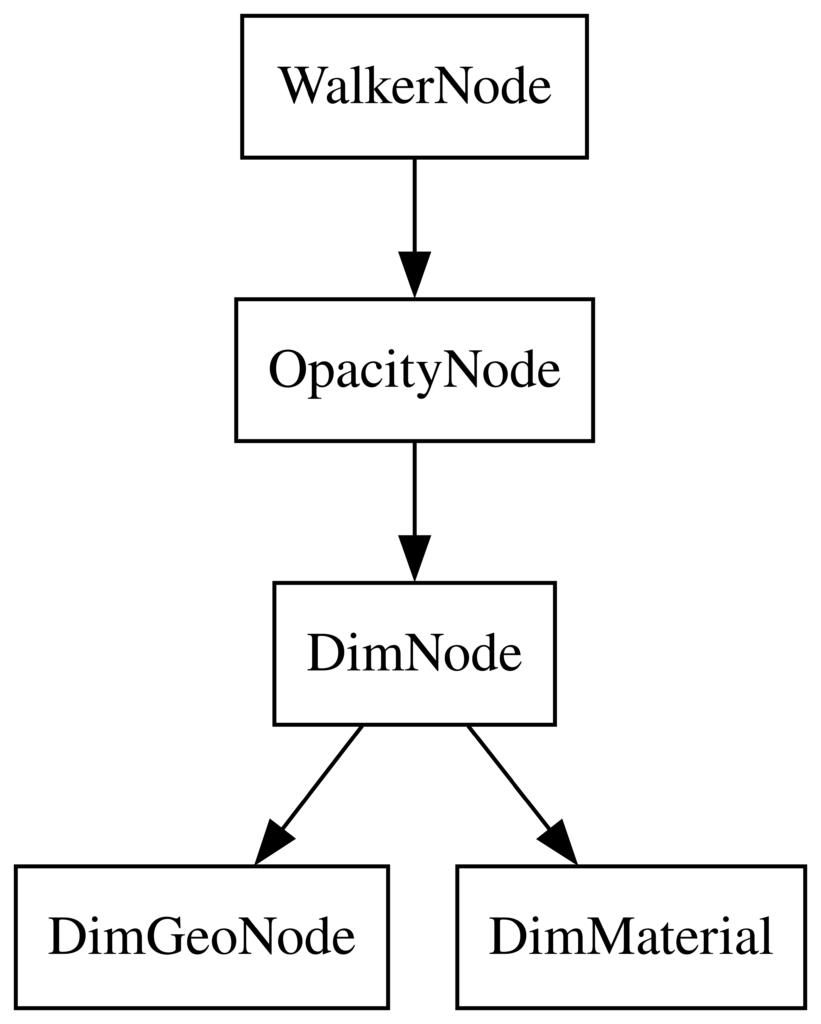
Now, let see the code of the QSGNode. You have to see the QSGNode as the root item of a tree. Where each node is in charge of representing one aspect of the item: its geometry, its color and its opacity.
// header
class WalkerNode : public QSGNode
{
public:
    WalkerNode();
    virtual ~WalkerNode();
    void update(const QRectF& outRect, const QRectF& inRect);
    void updateColor(const QColor& dim);
    void updateOpacity(qreal opacity);

private:
    QSGOpacityNode m_opacity;
    QSGFlatColorMaterial m_dimMat;
    QSGGeometryNode m_dim;
};
In the constructor, I create each node, and then I define the hierarchy.
WalkerNode::WalkerNode()
{
    auto dimGeo= new QSGGeometry(QSGGeometry::defaultAttributes_Point2D(), 0);
    dimGeo->setDrawingMode(QSGGeometry::DrawTriangles);
    dimGeo->allocate(triangleCount * 3);

    m_dim.setGeometry(dimGeo);
    m_dim.setMaterial(&m_dimMat);
    m_dimMat.setColor(Qt::black);

    m_opacity.setOpacity(0.6);

    m_opacity.appendChildNode(&m_dim);
    appendChildNode(&m_opacity);

    markDirty(QSGNode::DirtyMaterial | QSGNode::DirtyGeometry | QSGNode::DirtyOpacity);
}
Here the final tree:
Define or Update the geometry
void WalkerNode::update(const QRectF& out, const QRectF& in)
{
    // out is the geometry of the window
    // in is the geometry of the highlighted item
    const auto a= out.topLeft();
    const auto b= in.topLeft();
    const auto c= in.topRight();
    const auto d= out.topRight();
    const auto e= in.bottomRight();
    const auto f= out.bottomRight();
    const auto g= in.bottomLeft();
    const auto h= out.bottomLeft();

    {
        auto gem= m_dim.geometry();
        auto vertices= gem->vertexDataAsPoint2D();
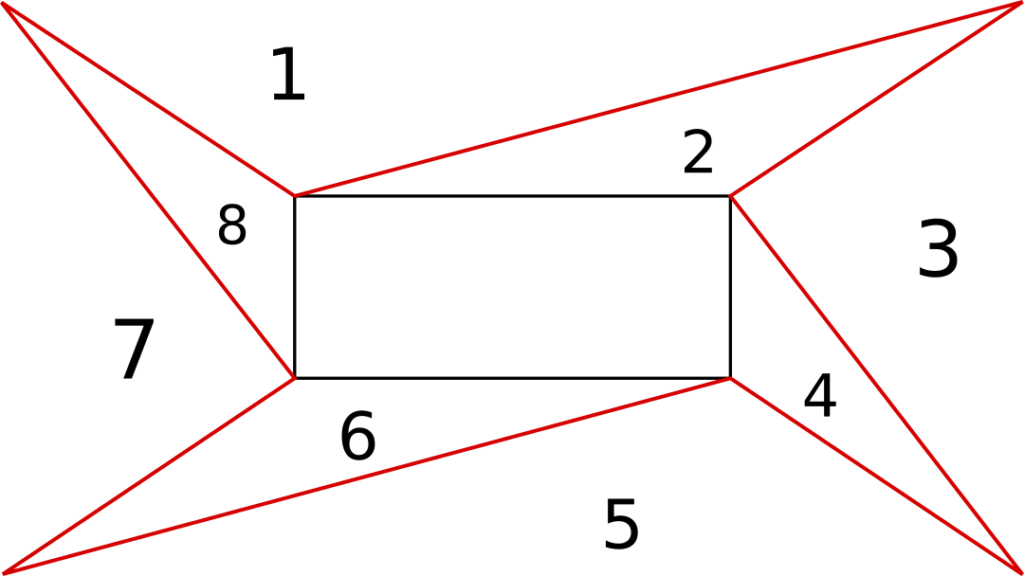
        QList<std::array<QPointF, 3>> triangles{{a, b, d}, {b, d, c}, {d, c, f}, {c, f, e},
                                                {f, e, h}, {e, g, h}, {h, g, a}, {g, a, b}};
        int i= 0;
        for(auto t : triangles)
        {
            vertices[i + 0].set(t[0].x(), t[0].y());
            vertices[i + 1].set(t[1].x(), t[1].y());
            vertices[i + 2].set(t[2].x(), t[2].y());
            i+= 3;
        }

        m_dim.markDirty(QSGNode::DirtyGeometry | QSGNode::DirtyMaterial);
    }

    markDirty(QSGNode::DirtyGeometry | QSGNode::DirtyMaterial);
}
We split the surface we have to cover in triangles.
Todo
- Animations: Smooth animation while transiting from one item to another.
- Test on bigger apps
- Find a logic to allow previous
- Use shader effect to make it better.
- Other…
Conclusion:
UiWalker is already in production. It works like a charm. I hope to use it elsewhere. Then, I will add some new features. Contributions and comments are welcomed.
Hope you find this article interesting.